This blog is part of Series : Comprehensive SharePoint 2013 Development Environment Installation and Configuration
Overview
This blog article discusses how to install Office Web Apps 2013 on a dedicated server and then integrate with an existing SharePoint 2013 Farm.
Assuming you had already established a SharePoint 2013 Farm and have instantiated a Windows 2012 Server instance dedicated for installing Office Web Apps 2013 Server based on earlier blog.
Reference http://technet.microsoft.com/en-us/library/jj219455.aspx
Steps
Office Web App Server Pre Requisites Installation On Windows 2012
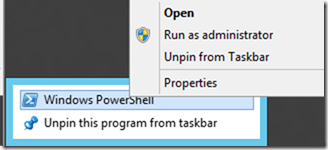
Login to OWA2013 server as SPSetup and run the PowerShell command as administrator.
![clip_image001[1]](https://blogger.googleusercontent.com/img/b/R29vZ2xl/AVvXsEh5-g_cztCL0H_gIa3gXo5lGVLxfY7YiWwR0bymQoNKqThhidMd2-ygcY-lYShn9cjtyA9RTruGTFTrqS3RbH4FmoaH0VloAKwds_2wnOemTAS4jWdZrCRVUtAcJBIaixAfpfXOlFZpHkWG//?imgmax=800 "clip_image001[1]")
Run below command script to install and pre-requisites.
Add-WindowsFeature Web-Server,Web-Mgmt-Tools,Web-Mgmt-Console,Web-WebServer,Web-Common-Http,Web-Default-Doc,Web-Static-Content,Web-Performance,Web-Stat-Compression,Web-Dyn-Compression,Web-Security,Web-Filtering,Web-Windows-Auth,Web-App-Dev,Web-Net-Ext45,Web-Asp-Net45,Web-ISAPI-Ext,Web-ISAPI-Filter,Web-Includes,InkandHandwritingServices

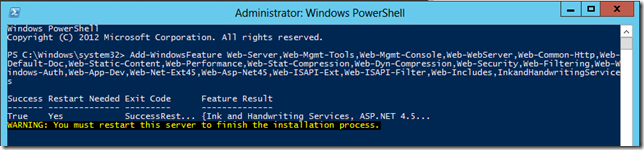
Restart the server
Office Web App Server Installation
Mount Office Web Apps 2013 Install on the OWA2013 server and run the Install


Office Web App Server CU Installation
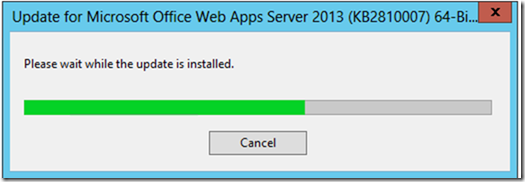
Download and install the Office Web Apps Server 2013 update KB2810007.
From <http://technet.microsoft.com/en-us/library/jj219455.aspx>

Office Web App Server Configuration
Step 1: Create OWA Farm and Configure to use HTTP and Support Editing
Reference http://technet.microsoft.com/en-us/library/jj219455.aspx
Login on to OWA2013 Server with SPSetup Account
From an elevated PowerShell command prompt run below command


Test by accessing from outside your server http://owa2013/hosting/discovery
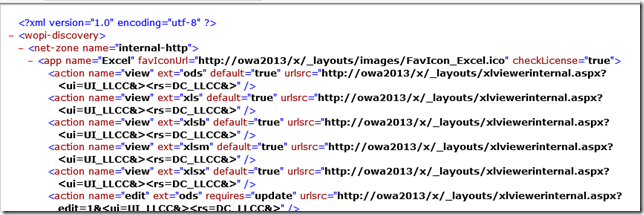
Office Web App Server Configuration on OWA2013 Server
Step 2: Configure SharePoint 2013 Farm to use the OWA Server
Reference
Login to SP2013WFE with SPSetup
From an elevated PowerShell command prompt run below command

Now you should see a long list application extension registration with the WOPIZone
To confirm type and test below command to verify that the new zone is internal-http

Change the AllowOAuthOverHttp setting in SharePoint 2013 to True. Run below command

That means we will need to allow SharePoint to allow OAuth over HTTP by running below commands

Now check one more time the status of OAuth over http

Now once again check the WOPI Zone and as you can see it is still se to internal-https
For this installation test since I had used internal and http, I am going to set the WOPI Zone accordingly as below.

Test Office Web Apps with SP 2013
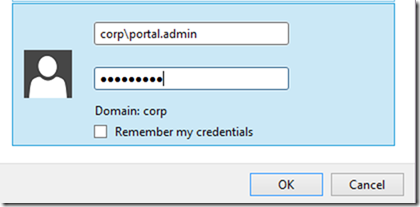
Browse to SharePoint site as user and not as system account (OWA does not work for system account)


Load sample Word Document
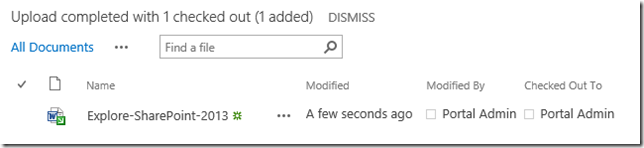
Click to open the document in OWA mode.


![clip_image001[4]](https://blogger.googleusercontent.com/img/b/R29vZ2xl/AVvXsEiNBBAlccP6drSj17pB4EZSwdeF6ntjnV9VOMsMrhWRKJLtZg46zofhRlGroeaEJCU4HjvOdrUVUbxY9p5gS2aIYluLZVM_rj5lEcjQT3okKJyssArUMveQiTN1tOiTO8RaIuOThnXXHhvV/s1600-h/clip_image001%25255B4%25255D%25255B2%25255D.png "clip_image001[4]")


![clip_image001[1]](https://blogger.googleusercontent.com/img/b/R29vZ2xl/AVvXsEjRlBQ4OHK0MAeRagcRZ8tjQ6gqDPOztemP_YE8o2YwjnRkvPxt7zfecJrcT80OTGzcyNIdh-PEsKNKwSm-lC9DEpVHo8g_raRztquN-K0_MYM3zD4nWyMNPVw7QmVykJw06sy0pnwVeioS/s1600-h/clip_image001%25255B1%25255D%25255B2%25255D.png "clip_image001[1]")


 Posts
Posts


